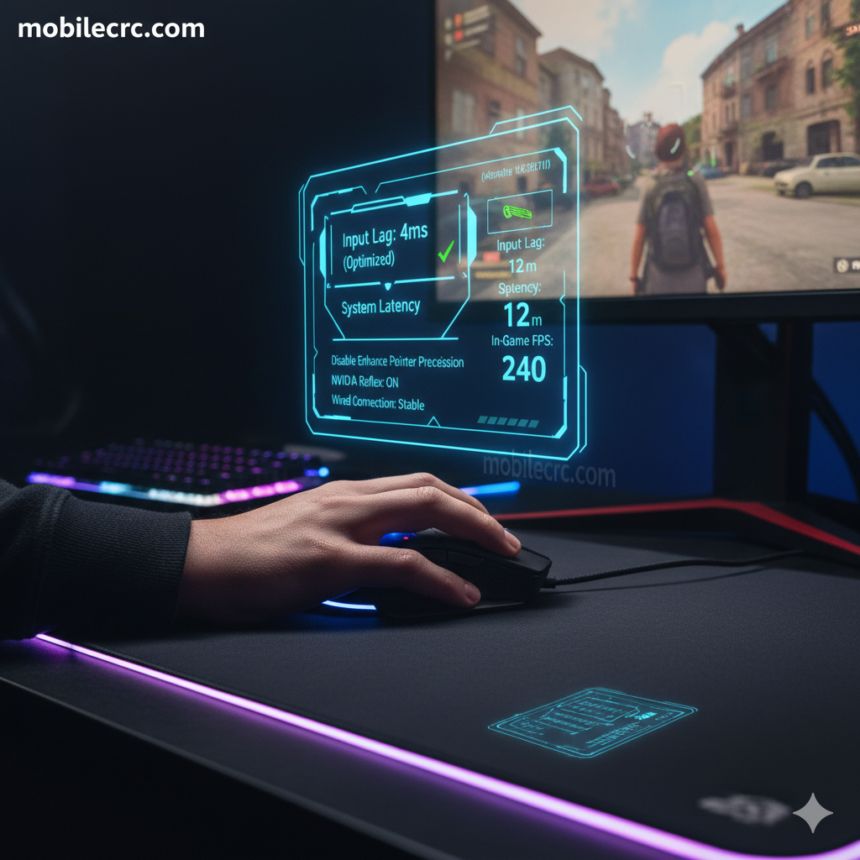
In the world of fast-paced games like Valorant, CS:2, or Warzone, a millisecond can be the difference between a win and a loss. Most players think they need a $3000 PC to compete, but the truth is, software and hardware settings play a bigger role. If you are searching for “how to reduce input lag for competitive gaming on budget setups,” you’ve come to the right place. At mobilecrc.com, we help you bridge the gap between pro-level performance and budget hardware.
1. Optimize Windows “Mouse Settings”
The first step to reducing lag isn’t your GPU—it’s your mouse. Ensure that “Enhance Pointer Precision” is turned OFF in your Windows settings. This feature adds artificial acceleration, which creates a disconnect between your hand movement and the screen. For anyone wondering how to reduce input lag for competitive gaming on budget setups, enabling “Raw Input” inside game settings is also a game-changer.
2. Enable NVIDIA Reflex or AMD Anti-Lag
If you have a budget GPU from the last few years, you likely have access to latency-reduction technology. Turn on NVIDIA Reflex (Low Latency Mode) or AMD Radeon Anti-Lag in your GPU control panel. These tools synchronize the CPU and GPU, ensuring that your frames are delivered to the monitor as fast as possible. At mobilecrc.com, we consider this the “Golden Rule” for budget gamers.
3. Use a Wired Connection (No Bluetooth!)
Wireless peripherals have improved, but on a budget setup, cheap wireless mice and keyboards often have significant interference lag. Switching to a wired USB connection for your mouse and keyboard removes the wireless polling delay. Similarly, use an Ethernet cable instead of Wi-Fi to eliminate “network jitter,” which often feels like input lag.
4. Overclock Your Monitor Refresh Rate
Did you know many 60Hz monitors can safely be overclocked to 75Hz using the NVIDIA or AMD control panel? Those extra 15 frames reduce the time it takes for your screen to display your actions. This is a pro-level trick for how to reduce input lag for competitive gaming on budget setups without spending a single Rupee.
5. Disable “Full-Screen Optimizations”
Windows often tries to manage game windows in a way that adds a tiny bit of lag. Right-click your game’s .exe file, go to Properties > Compatibility, and check “Disable Full-Screen Optimizations.” This forces Windows to give the game direct access to the display, cutting out the “middleman” lag.
Conclusion
You don’t need the most expensive gear to have a fast response time. By tweaking your settings and choosing the right connections, you can outplay opponents with better rigs. Following these steps on “how to reduce input lag for competitive gaming on budget setups” will give you that competitive edge you’ve been looking for. For more gaming hacks and gear reviews, stay tuned to mobilecrc.com!