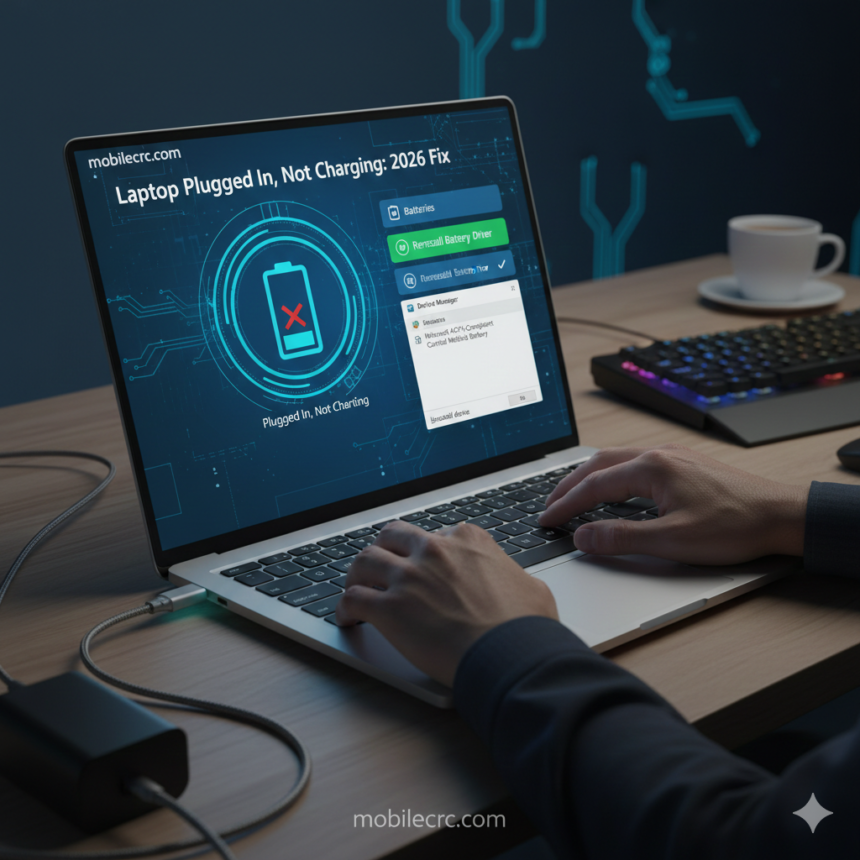
It is incredibly frustrating when you connect your charger, the light turns on, but your battery percentage doesn’t move. If you are searching for “how to fix laptop plugged in not charging on Windows 11,” don’t panic. In 90% of cases, it’s a software glitch rather than a dead battery. At mobilecrc.com, we specialize in fixing tech headaches with simple, actionable steps.
1. Check the Power Cable and Port First
Before diving into software, ensure the basic hardware is working. Sometimes dust inside the charging port or a loose connection in the power brick can cause the “not charging” status. Unplug everything, blow some compressed air into the port, and reconnect. If the problem persists, it’s time to look at the Windows settings.
2. Reinstall the Battery Driver (The Most Effective Fix)
Windows 11 uses a specific driver to communicate with your battery. If this driver gets corrupted, the charging stops.
- Right-click the Start button and select Device Manager.
- Expand the Batteries section.
- Right-click Microsoft ACPI-Compliant Control Method Battery and select Uninstall.
- Restart your laptop. Windows will automatically reinstall the fresh driver upon reboot. This is the top-rated solution for how to fix laptop plugged in not charging on Windows 11.
3. Disable “Battery Health” or “Conservation Mode”
Many modern laptops (like Lenovo, ASUS, and Dell) have built-in software that stops charging at 60% or 80% to protect battery lifespan. Check your manufacturer’s app (e.g., Lenovo Vantage, MyASUS). If “Conservation Mode” is ON, your laptop will show “Plugged in, not charging” intentionally. At mobilecrc.com, we recommend keeping this on if you always stay plugged in, but turn it off if you need a 100% charge for travel.
4. Update Your BIOS
Sometimes the communication between the motherboard and the battery needs a firmware update. Check your laptop manufacturer’s website for any “BIOS” or “UEFI” updates. A BIOS update can often resolve deep-level power management bugs that Windows cannot fix alone.
5. Perform a “Power Reset”
If your laptop has a removable battery, take it out, hold the power button for 30 seconds, then put it back in and charge. If the battery is non-removable, shut down the laptop and hold the power button for 60 seconds. This drains static electricity from the motherboard and resets the charging controller.
Conclusion
A laptop that isn’t charging doesn’t always need a costly repair. By following these steps on “how to fix laptop plugged in not charging on Windows 11,” you can troubleshoot the issue like a pro. If none of these work, it might be time for a physical battery replacement. For more computer repair guides and hardware tips, stay connected with mobilecrc.com!